Troubleshooting
No AI calls appear#
The Overview says Waiting for the first AI call even though a plugin has used AI. Check these in order:
- Can Gatehouse see this plugin's calls? It sees plugins that use the WordPress AI Client, and plugins that call Anthropic, OpenAI, Google, OpenRouter, xAI, Mistral, DeepSeek, Groq or Perplexity directly through WordPress's HTTP functions. It can't see plugins that send AI requests to their own service, or that use their own HTTP code. See What Gatehouse can and can't see.
- For AI Client plugins: is an AI provider connected? Look for a banner at the top of the Overview, and check Settings → Connectors.
- Is AI turned off on the site? A banner says AI features are turned off on this site when the
WP_AI_SUPPORTconstant is set tofalse, or when another plugin uses thewp_supports_aifilter to disable AI. - Are you looking at the right period? Pick 30 days or 90 days at the top of the Overview.
A banner says the provider is not connected#
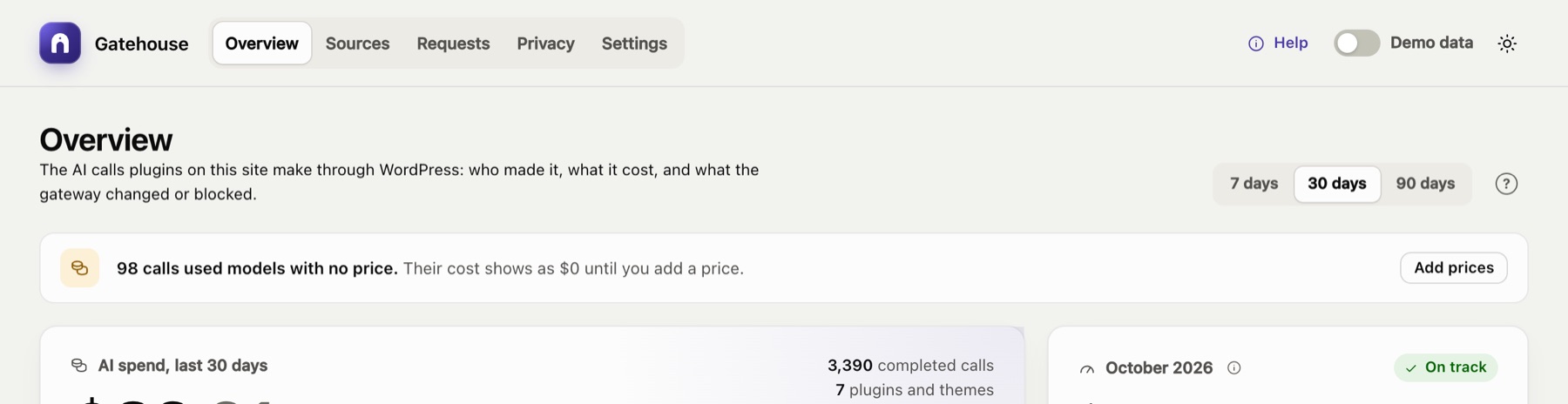
- "No AI provider is connected": install a provider plugin (for example AI Provider for Anthropic) and add its API key under Settings → Connectors.
- "… is installed but not connected": the provider plugin is installed, but no API key has been added. Add the key under Settings → Connectors.
Gatehouse only checks that a key is configured; it never calls the provider to test it. If plugins' calls fail even though a key is added, open a failed call in Requests: the provider's error (for example an invalid key or no credit) is shown there.
Calls are blocked with "Not approved in AI → Connector Approval"#
Your site uses the AI plugin's Connector Approval feature, which blocks each plugin until an administrator approves it.
- Go to Tools → Connector Approval. The Overview also shows a Review approvals button.
- Approve the plugin.
Gatehouse itself never needs approval. See Connector Approval.
A plugin's AI features have disappeared#
The plugin is probably blocked. On Sources, check its status:
- Not approved: if the Requests log says Not approved in AI → Connector Approval, approve the plugin under Tools → Connector Approval.
- Paused: open its Policy and turn off Pause AI.
- Budget reached: raise its monthly budget, or wait for the 1st of next month.
Also check the site-wide budget under Settings: when it is reached, every plugin is blocked. The Requests log, filtered by Blocked, shows the reason for each blocked call.
Costs show $0 or "n/a"#
The model has no price. See Models without a price.
Costs don't match my provider's invoice#
Gatehouse's costs are estimates. Common reasons for a difference:
- Your provider changed a price. Turn on automatic price updates (or click Update now), or edit the price under Settings → Model prices.
- Discounts: prompt caching, batch processing or a negotiated rate. Enter your effective price under Settings → Model prices.
- Calls Gatehouse can't see: plugins that call the provider directly, or other websites and apps using the same API key.
- Billing periods and timezones: your provider may bill in UTC; Gatehouse uses your site's timezone.
Automatic price updates fail#
Settings → Model prices shows the error under the switch. The last prices that downloaded successfully stay in use, so cost estimates keep working.
- "Could not … / timed out": your server can't reach
openrouter.ai. Some hosts block outgoing requests; ask your host to allow it, or turn automatic updates off and use the built-in prices. - "Empty or in an unexpected format": the price list changed format. Keep Gatehouse updated; the built-in prices are used as a fallback meanwhile.
Answers contain placeholders such as [EMAIL_1]#
This only happens for plugins with redaction on. Gatehouse puts real values back when the answer contains a placeholder as sent, or slightly rewritten ([EMAIL 1], [email_1], EMAIL_1). If a model changes it beyond that, it can't be restored.
If it keeps happening for a plugin, turn redaction off for it on the Privacy page. To check what a plugin is sending, temporarily turn on excerpts under Settings → Logging and open the call in Requests.
Something that isn't personal data was detected#
- Numbers: phone numbers without
+or brackets only count right after a word such as "phone" or "call", and amounts such as12 500 000are ignored. A code that follows such a word can still be counted. If phone detection doesn't suit your site, switch off Phone numbers under Privacy. - Custom terms match whole words only, ignoring case. Make terms specific: "Falcon Project" rather than "Falcon".
Detection alone never changes a request; only plugins with redaction on are affected.
Use the Try it box on the Privacy page to test any text.
I don't receive alert emails#
- Check Settings: Email alerts must be on and the address correct.
- Each alert is sent once per budget per month. If you already received the 80% email this month, you won't get it again.
- Check WordPress email itself: alerts use WordPress's normal email system. If other WordPress emails (such as password resets) also don't arrive, install an SMTP plugin to send mail through a proper email service.
The forecast looks too high or too low#
The forecast uses the last 7 days' average. A one-off spike, such as a bulk job that generated 500 product descriptions, raises the forecast for a week. Brand-new sources have little history, so their forecast moves a lot at first.
Old plugins still appear on Sources#
Sources stay listed while they have calls in the selected period, or a saved policy. They disappear once their calls age out of the period. If a deleted plugin had a policy, clear its budget and switches.
The Gatehouse page is blank or doesn't load#
- Reload the page. If it still fails, open your browser's developer console and look for errors.
- Check that the plugin files are complete. The
build/folder must exist. If you installed from source code rather than a release zip, runnpm install && npm run build. - Check security plugins and firewalls. The dashboard loads its data from the WordPress REST API (
/wp-json/gatehouse/v1/…). If a security plugin or firewall blocks the REST API for logged-in admins, the dashboard can't load. - Check your role. Only administrators can open Gatehouse.
Still stuck?#
When asking for help, include:
- your WordPress, PHP and Gatehouse versions;
- which AI provider plugin you use;
- what you expected and what happened;
- any error from Requests → request details or your browser console.
Still stuck? Check Troubleshooting and the FAQ, or ask on the support forum. Inside WordPress, click Help at the top right of Gatehouse.