Sources and budgets
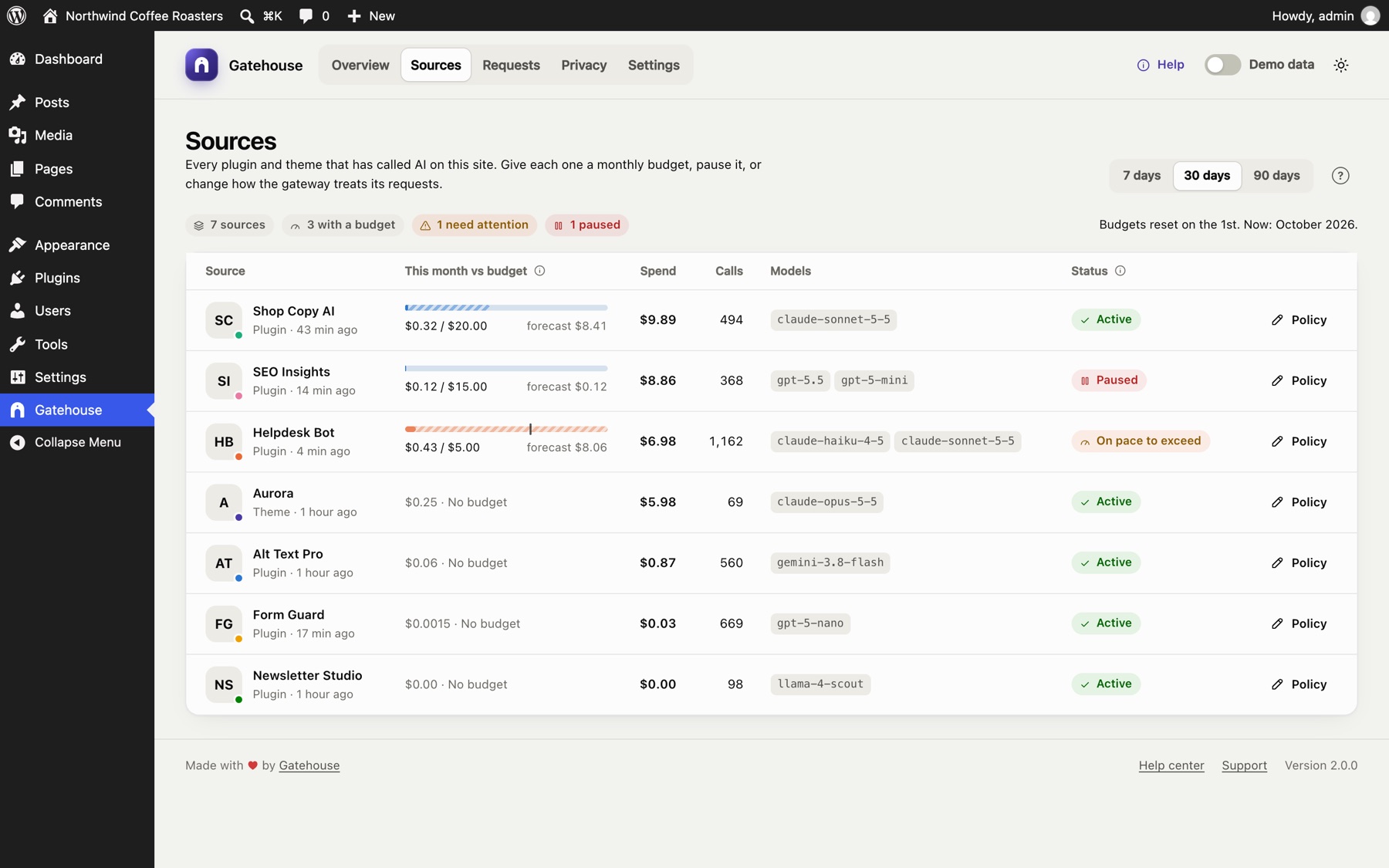
A source is a plugin, theme or must-use plugin that has made an AI call Gatehouse can see: through the WordPress AI Client, or directly with its own API key. The Sources page lists every one, so you can see what each costs and decide how much it may spend.
How Gatehouse knows which plugin made a call#
When a call starts, Gatehouse looks at which plugin's or theme's code asked for it. It ignores the AI provider plugins themselves and Gatehouse, because they only carry the request. Calls that don't come from any plugin or theme are shown as WordPress core.
Names come from each plugin's or theme's own header. If you later delete a plugin, its past calls keep its name.
The table#
| Column | Meaning |
|---|---|
| Source | Name, type (Plugin, Theme, Must-use plugin) and when it last made a call |
| This month vs budget | Month-to-date spend against its budget, with the month-end forecast |
| Spend | Estimated spend in the selected period (7, 30 or 90 days) |
| Calls | All calls in the period, including blocked and failed ones |
| Models | The models it used most |
| Status | See below |
The pills above the table count your sources, how many have a budget, how many need attention and how many are paused.
Statuses#
| Status | Meaning |
|---|---|
| Active | Under budget and on pace, or no budget set |
| On pace to exceed | Under budget now, but the month-end forecast is over it |
| Near budget | Has used at least your alert threshold (80% by default) |
| Budget reached | Calls are blocked until the 1st of next month or until you raise the budget |
| Hit hourly limit | It made as many calls in the last hour as its hourly limit allows; further calls are blocked until the count drops |
| Paused | You paused it; every call is blocked |
Policies#
Click a row, or its Policy button, to open the policy panel.
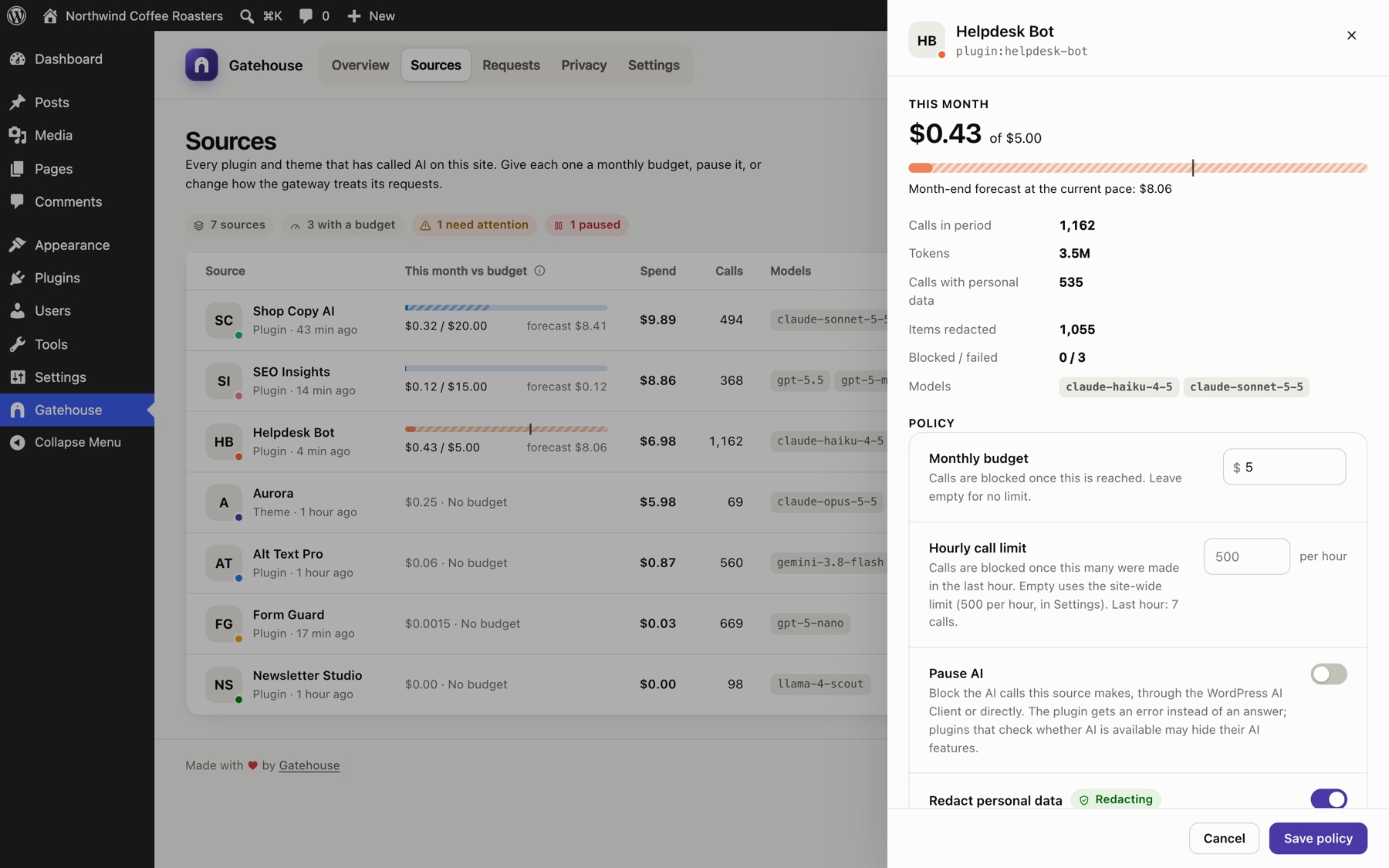
The top of the panel shows this month's spend, the budget bar and forecast, and the source's activity in the selected period: calls, tokens, calls with personal data, items redacted, blocked and failed calls, and models.
Below that are four settings. Click Save policy to apply them.
Monthly budget#
The most this source may spend in a calendar month, in US dollars. Leave it empty for no limit.
- When the source reaches its budget, Gatehouse blocks its next calls before they are sent to the provider, so they cost nothing.
- Budgets reset automatically on the 1st of each month (your site's timezone).
- Raising the budget lifts the block straight away.
Hourly call limit#
The most AI calls this source may make in an hour. Empty uses the site-wide limit from Settings, if there is one. The panel shows how many calls it made in the last hour.
- It counts every completed or failed call, including streamed answers whose cost isn't known, so it catches loops and spam waves that a dollar budget can miss.
- Blocked calls don't count.
- Set it well above the plugin's normal use. A busy form or spam checker can legitimately make hundreds of calls an hour.
Pause AI#
Blocks every AI call from this source, whatever its budget. Use it to stop a misbehaving plugin immediately, or to switch off a plugin's AI features without deactivating the plugin.
Redact personal data#
Off by default. When on, emails, phone numbers and the other kinds of personal data you chose are replaced with placeholders before this source's requests leave your site, and put back in the answer. Turn it on for plugins that don't need the real values, such as a support reply writer. Leave it off for plugins that do, such as a spam checker. See Privacy.
What happens when a call is blocked#
- The plugin asks for AI.
- Gatehouse sees that the source is paused, over a budget or over its hourly limit.
- Nothing is sent to the provider and nothing is charged.
- The plugin gets an error instead of an answer:
- a plugin using the WordPress AI Client receives the same error WordPress gives when AI is unavailable;
- a plugin calling a provider directly receives an HTTP error that says Blocked by Gatehouse and the reason.
- The call is logged as Blocked, with the reason, in Requests.
Plugins that use the AI Client and check whether AI is available before showing their AI buttons may hide those buttons while a source is blocked. These checks are not logged.
Budget order#
A call is blocked if any of these is true, checked in this order:
- the source is paused;
- the source has reached its hourly call limit;
- the source has reached its own monthly budget;
- the whole site has reached its site-wide monthly budget (set in Settings).
Calls whose cost isn't known (streamed answers a plugin reads itself) don't count towards dollar budgets. The hourly limit still counts them.
Alerts#
If email alerts are on (in Settings), Gatehouse emails you:
- once when a source passes the alert threshold (80% by default), and once when it reaches its budget (at most once per budget per month; the site-wide budget gets the same two emails);
- once a day when a source hits its hourly call limit;
- once a day when a source's activity is far above its normal level: an hour with at least 20 calls and five times its usual hourly calls, or a day costing at least $1 and four times its usual daily spend. A source needs three days of history first. These spike alerts don't block anything; they appear under Needs attention on the Overview too.
Still stuck? Check Troubleshooting and the FAQ, or ask on the support forum. Inside WordPress, click Help at the top right of Gatehouse.