Local AI with WebLLM
Limitations: read this first.
- The model runs only in an open dashboard (wp-admin) tab. Close every tab and AI calls fail.
- No cron, WP-CLI or front-end visitors: background tasks and visitors on your site have no browser running the model.
- Small models that fit in a browser: useful, but weaker than cloud models.
- Chrome or Edge on a desktop with WebGPU, and an HTTPS (or
localhost) site.That makes it a good fit for development sites and editor-side experiments, not for a live site's AI features.
AI Provider for WebLLM runs a language model inside your browser. Gatehouse tracks it like any other provider, at a cost of $0.
- No API key and no bill. The model runs on your computer's graphics chip (WebGPU).
- Nothing sent to an AI company. Prompts and answers stay in your browser and your site.
- Free and open source (GPL), created by Joost de Valk and published by Progress Planner. Gatehouse isn't affiliated with it; we recommend it because it fits how we think AI should work in WordPress.
Project page: github.com/ProgressPlanner/ai-provider-for-webllm
What you need#
- WordPress 7.0 or newer (it uses the AI Client built into WordPress 7.0).
- HTTPS (or
localhoston a development site). Browsers only allow WebGPU on secure pages. - A browser with WebGPU: recent Chrome or Edge on desktop work best.
- Space and memory for the model. Models download once (from a few hundred MB to a few GB, depending on the model) and are then cached by the browser. Smaller models are faster and lighter.
1. Download#
The plugin isn't on WordPress.org yet, so you download it from GitHub:
- Open the project on GitHub.
- Click the green Code button, then Download ZIP. You get a file such as
ai-provider-for-webllm-main.zip. Don't unzip it.
2. Install and activate#
- In your WordPress dashboard, go to Plugins → Add New → Upload Plugin.
- Choose the zip you downloaded and click Install Now.
- Click Activate Plugin.
Multisite: WebLLM's settings are per site. On each site that uses AI, open that site's Settings → WebLLM, choose a model and turn on the worker.
3. Choose a model and turn on the worker#
- Go to Settings → WebLLM.
- Pick a Model. The list comes from WebLLM's catalogue and shows each model's download size. Start with a small one, around 1 GB or less (for example a 0.5B–1B model such as Qwen2.5-0.5B-Instruct or Llama-3.2-1B-Instruct). The default, Qwen3.5-4B (about 3.8 GB), gives better answers but takes much longer to download and load, and needs a powerful computer. You can switch later.
- Turn on In-browser worker. Most plugins start their AI requests on your server; the worker lets an open dashboard tab answer them.
- Click Save Changes.
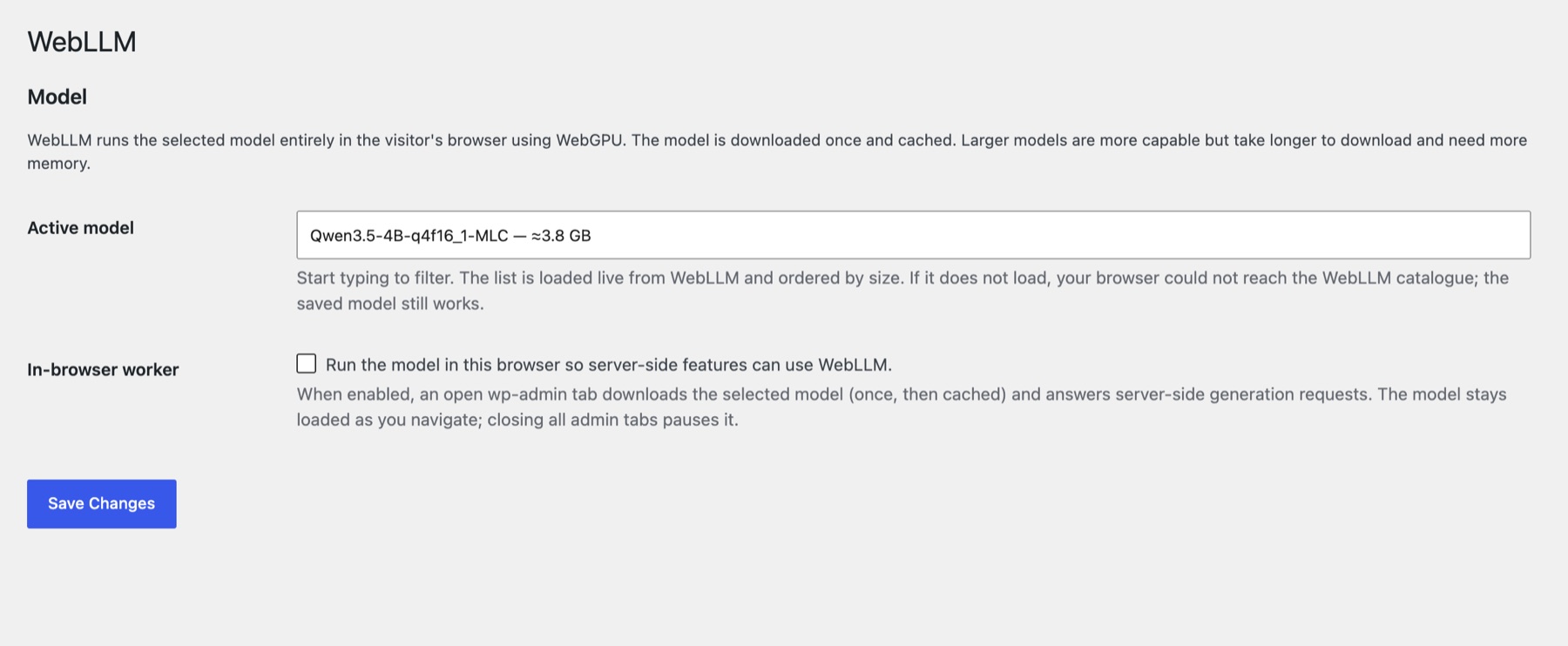
The first time a model is used, your browser downloads it. Keep the tab open until it's done; it's cached after that.
4. Check that it works#
- Stay on Settings → WebLLM. The status line should read WebLLM worker: ready (after loading model… the first time). If it says unavailable, see Troubleshooting.
- In Gatehouse: open Gatehouse → Overview. The "No AI provider is connected" banner is gone; if the worker is off, a banner says so.
- Use any AI feature of one of your plugins, then open Gatehouse → Requests. The call is listed with provider webllm, its model and tokens, and a cost of $0.
How it behaves#
- Keep a dashboard tab open while you use AI features. With no tab open, there's no browser to run the model, and requests wait and then time out.
- Wait for “ready”. The model loads into each dashboard page you open (from the browser's cache after the first time). Calls made before it finishes fail with No WebLLM worker is connected for model …; try again once WebLLM worker: ready shows. Small models load in seconds.
- No background AI. Scheduled tasks (cron) and WP-CLI have no browser, so AI calls that plugins make in the background fail while WebLLM is the provider. Gatehouse logs them as failed, so you can see which plugins do this.
- Budgets and costs. Local calls cost $0, so they never use up a budget or show as unpriced. Pausing a plugin still stops its calls.
- Speed depends on your computer. A laptop with a recent graphics chip answers a short request in seconds; older machines take longer. Smaller models help.
Troubleshooting#
| What you see | What to do |
|---|---|
| unavailable — needs a secure context | Use your site's https:// address. On a development site, localhost works too. |
| unavailable — WebGPU is not available | Use a recent Chrome or Edge on a desktop computer, and make sure hardware acceleration is on in the browser's settings. |
| error: … while loading a model | The download was interrupted or the device ran out of memory. Reload the page, or choose a smaller model. |
| Gatehouse still says no provider is connected | Check that the plugin is active, a model is saved, and In-browser worker is on. Then reload the Gatehouse screen. |
| No WebLLM worker is connected for model … | The model is still downloading or loading. Stay on the page until Settings → WebLLM shows WebLLM worker: ready, then retry. If it never gets there, choose a smaller model. On multisite, set up WebLLM on the site you're using. |
| Requests time out | Keep a dashboard tab open and wait for WebLLM worker: ready. Very slow devices may need a smaller model. |
For problems with WebLLM itself, see the project's support page.
Credits#
AI Provider for WebLLM was created by Joost de Valk, is published by Progress Planner, and is released under the GPL. It runs models with WebLLM by the MLC AI project. Thank you to both.
Still stuck? Check Troubleshooting and the FAQ, or ask on the support forum. Inside WordPress, click Help at the top right of Gatehouse.