Spotlight
Spotlight lets you point at a problem on the page itself, instead of describing it. Your support team opens the same page with your spot highlighted.
Spotlight a problem#
- On the Fixpass page, choose Show the problem, then give access, then go to the page with the problem: any page of your site, or of the dashboard. (You can also go straight to the page and click the toolbar button.)
- Click Spotlight a problem in the toolbar at the top. It glows while the Fixpass page is guiding you.
- The first time, a short card explains how it works. Tick Don't show this again if you don't need it next time.
- Click the part of the page that's wrong, or drag a box around an area.
- Add a short note if you like ("wrong price", "button does nothing").
- Add another spot for up to 5 spots, all on the same page, or click Continue.
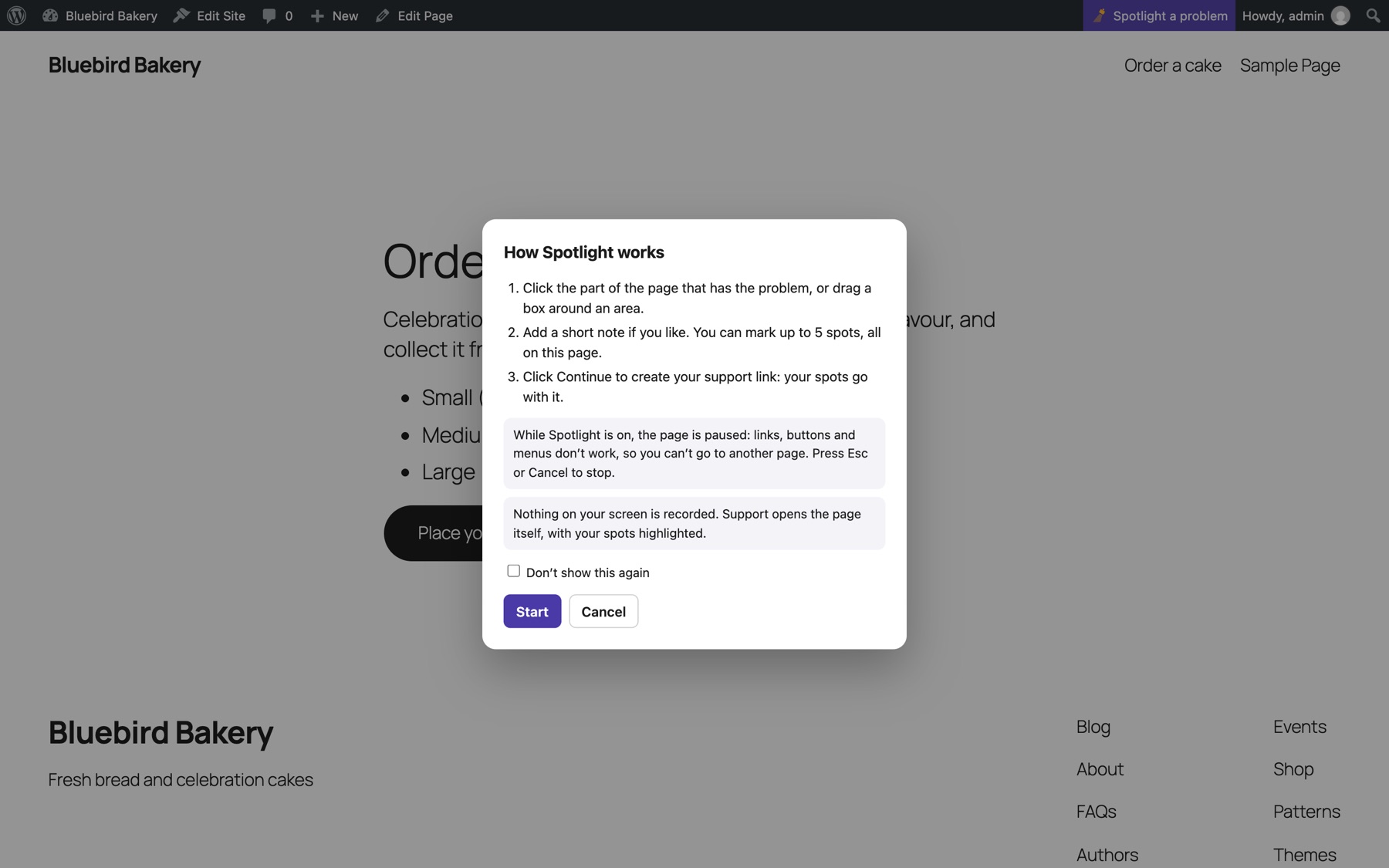
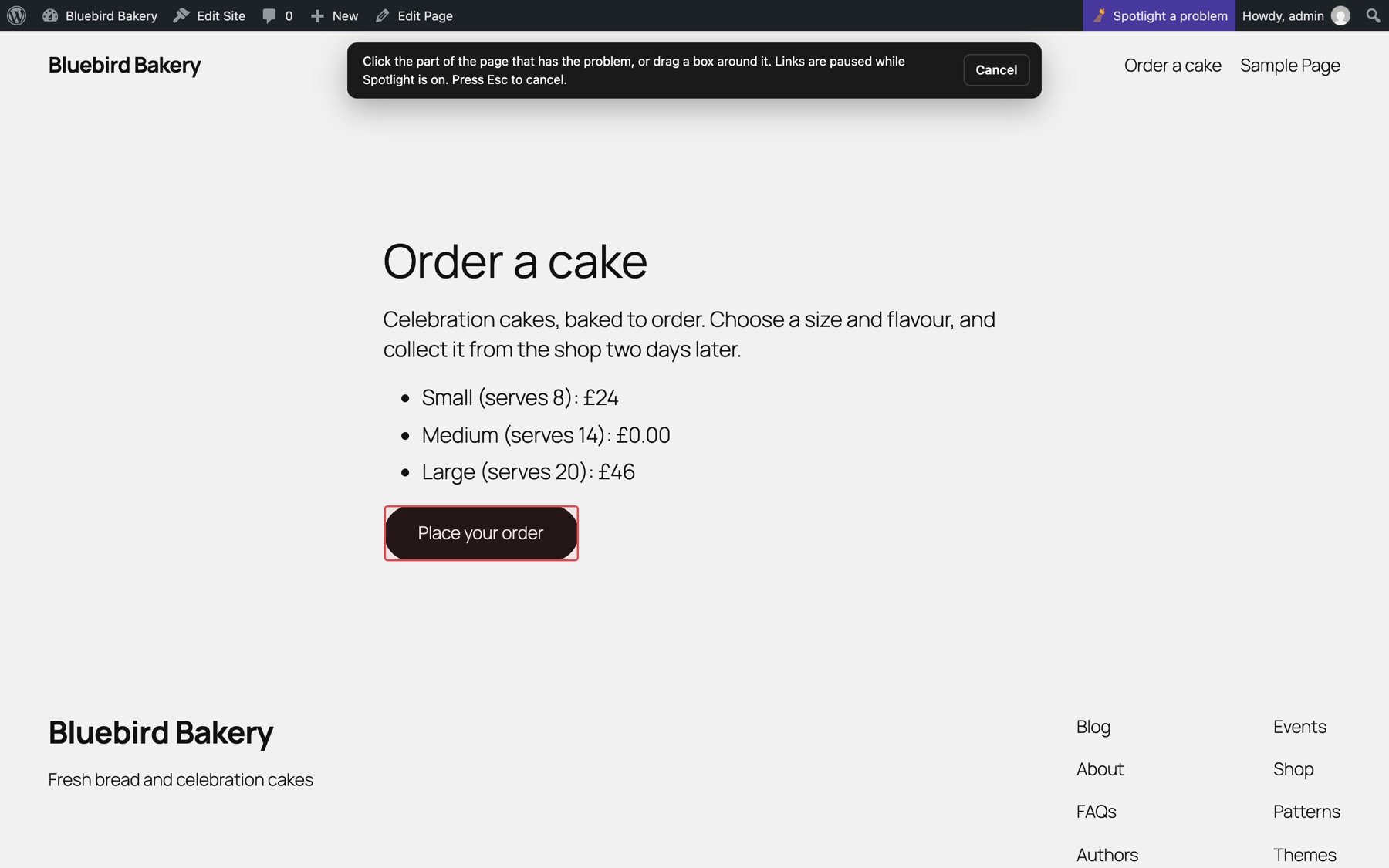
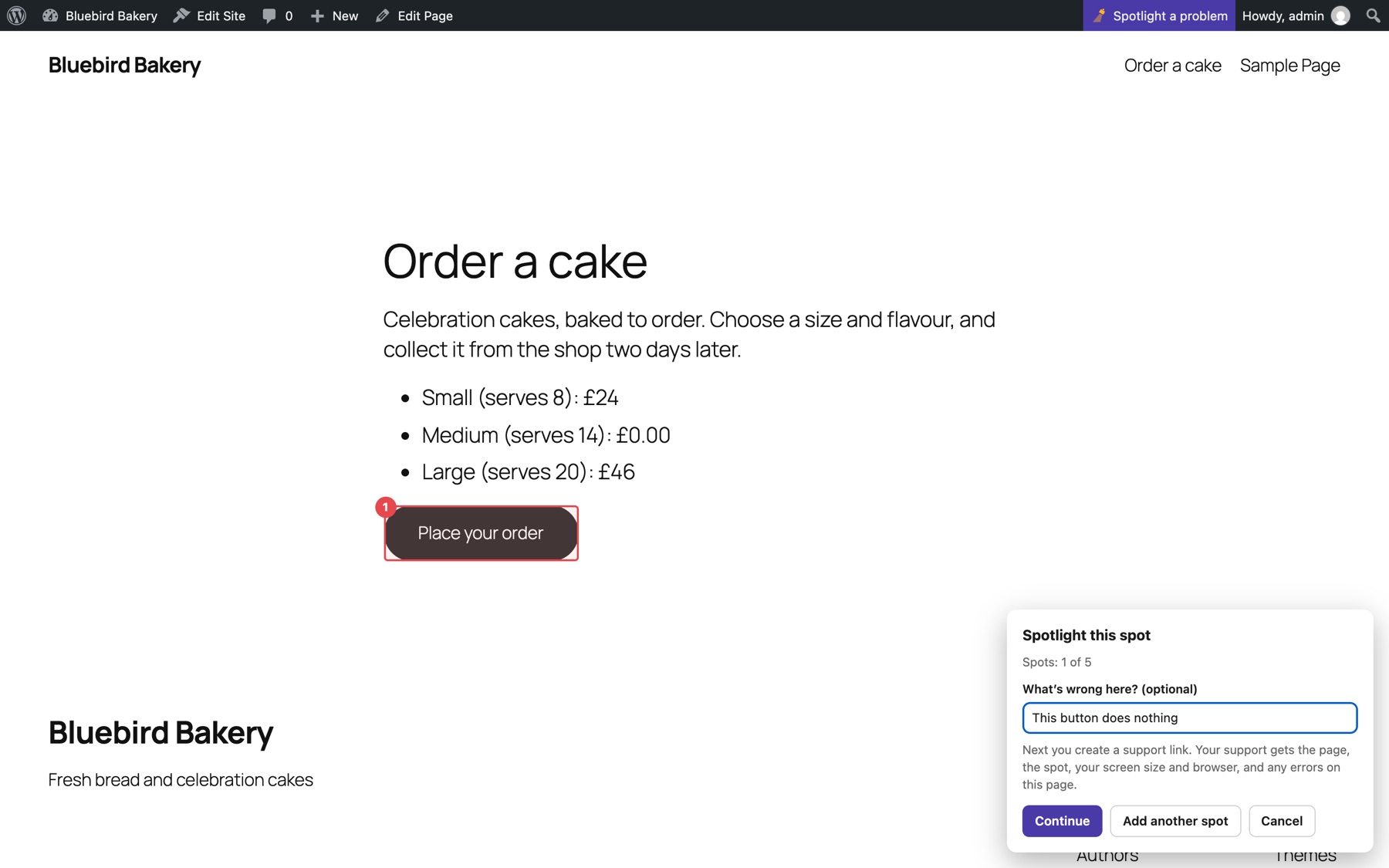
Continue takes you back to the Fixpass page with your spots listed ("spots ready to send"), and the form to give access right below.
While Spotlight is on#
- The page is paused: links, buttons and menus don't work, so you can't go to another page. This is on purpose: your clicks pick spots.
- Press Esc or click Cancel to stop.
- All the spots in one go are on one page. For a problem on another page, finish first, then spotlight that page.
What's sent with a spot#
- The page address and title.
- Where the spot is on the page, so it can be highlighted again.
- Your note.
- Your screen size and browser.
- JavaScript errors on the page, and requests that failed.
Nothing on your screen is recorded or uploaded: no screenshots, no video. Support opens the real page.
What support sees#
Each spot has an Open and highlight link. It opens the page and draws a box where you pointed. If the page has changed and the exact element is gone, the box shows where it was.
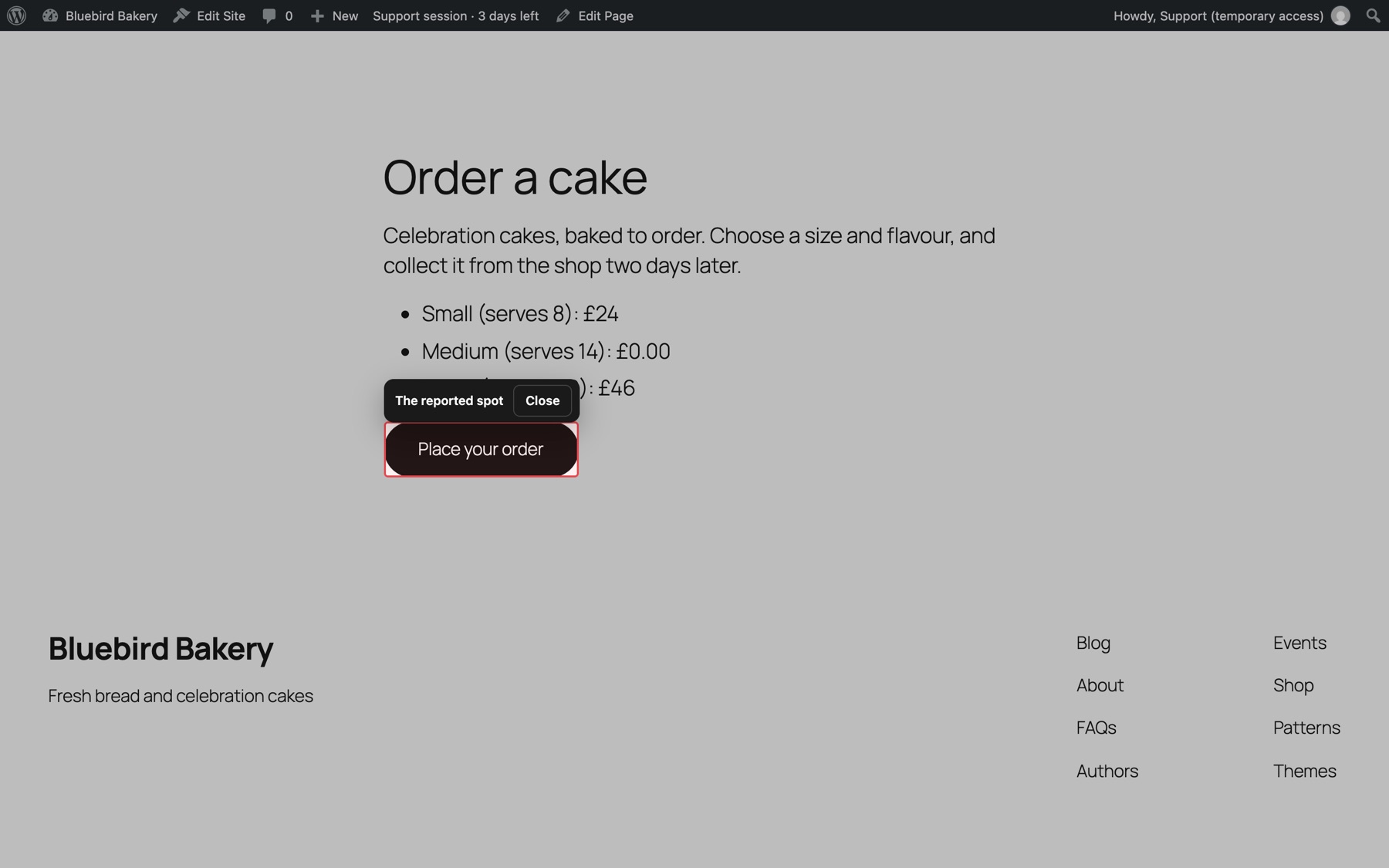
Spots for pages in the dashboard need support to be logged in first.
Turn Spotlight off#
On the Fixpass page, under the two big buttons, click Turn it off next to "Spotlight is on". Spotlight is on by default. If it's off, Show the problem, then give access turns it on again.
The toolbar button is hidden while support access is open: the status is all you need then.
Still stuck? Check the FAQ, or ask on GitHub.