Export and share
Both start from the dashboard you are looking at, including your current filters and style.
Export#
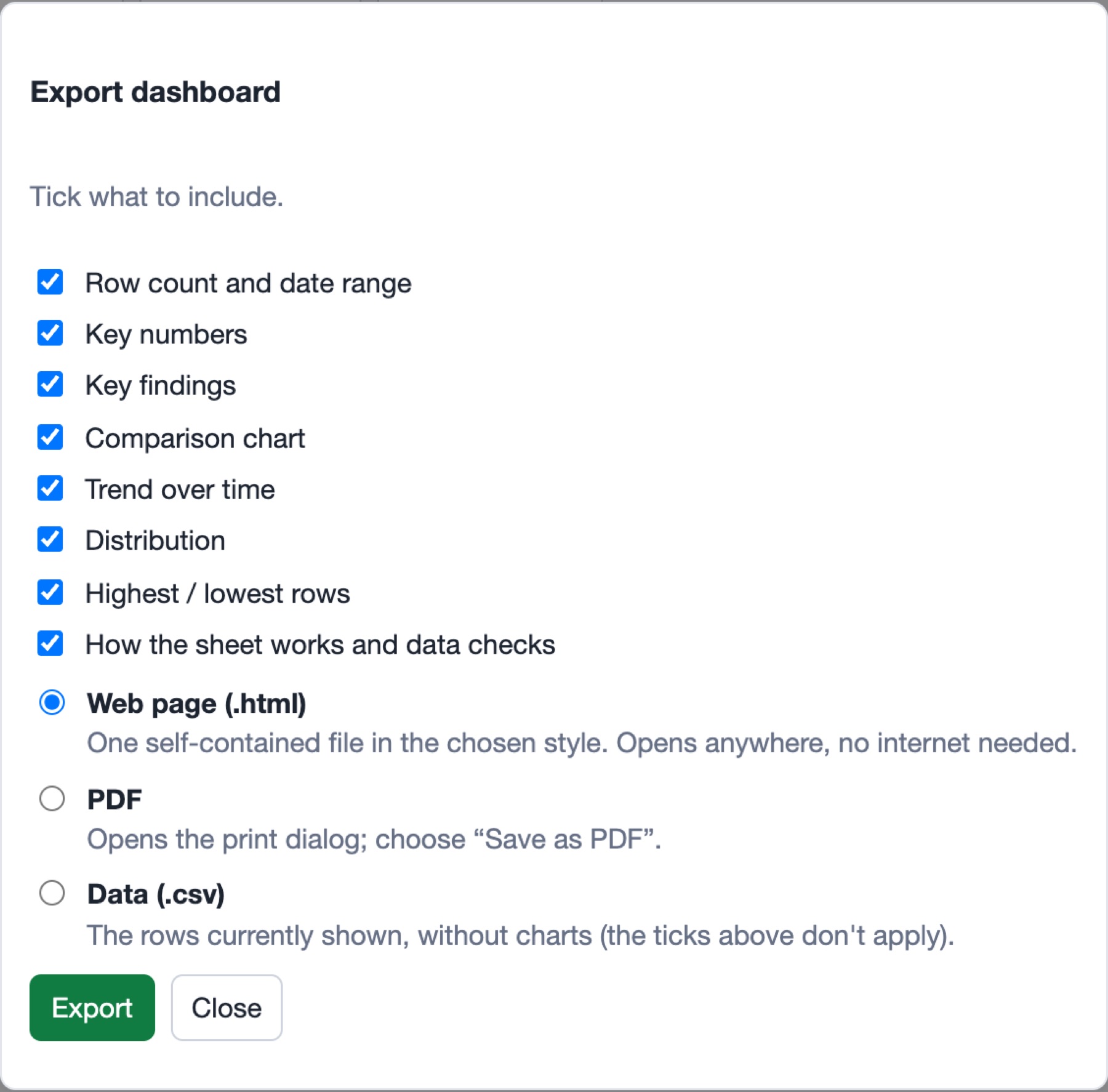
Click Export…, tick the sections to include, and choose a format:
| Format | What you get |
|---|---|
| Web page (.html) | One self-contained file in your chosen style. It opens in any browser, without internet, and keeps its charts and findings. Controls are removed. |
| Opens the print dialog in a new tab. Choose Save as PDF. | |
| Data (.csv) | The rows currently shown, without charts. The section ticks do not apply. |
If you applied a filter, the export says so at the top, so nobody mistakes a partial view for the whole sheet. Every export carries a credits footer.
Share#
Click Share…, choose what to include, and create a link:
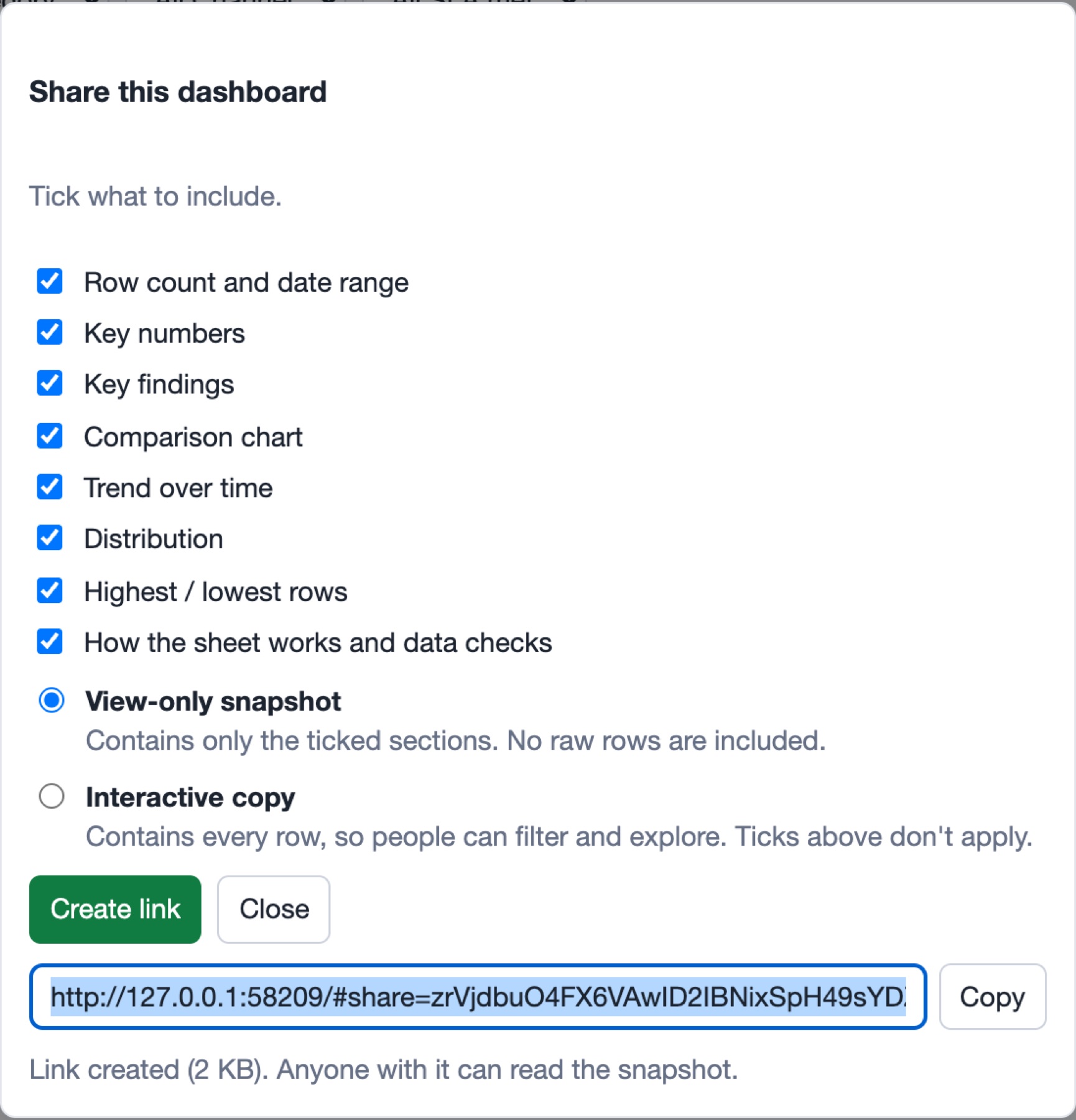
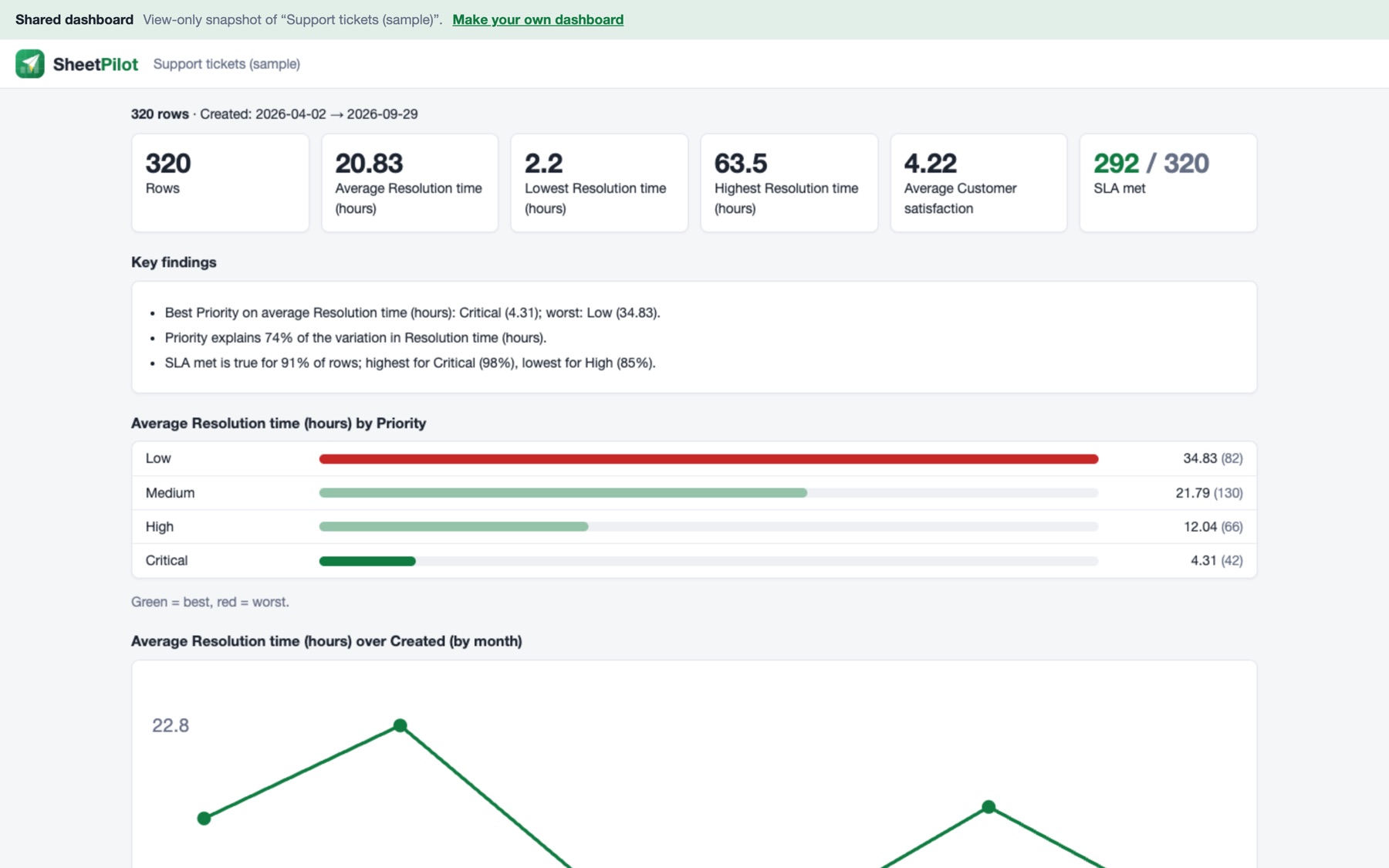
- View-only snapshot: contains only the ticked sections, as they look now. No raw rows are included. Opening it shows the dashboard without any controls.
- Interactive copy: contains every row, so the recipient can filter, compare and change the style. They can save a copy to their own sheets. Their changes are never sent back to you.
How sharing works#
There is no server. The link itself holds the data, compressed, after the # in the address, and that part of a web address is never sent to the web server. This keeps SheetPilot free and private, and it means:
- Anyone who has the link can read what is in it. Do not share confidential sheets this way, and note that chat apps and email systems may keep a copy of the link.
- Links cannot be revoked or updated. Create a new one if something changes.
- Long links (over about 30 KB) can be cut off by some chat apps. Large sheets may be too big for a link, in which case SheetPilot suggests exporting a web page instead.
- Snapshots open in a sandbox with scripts switched off, so a shared link cannot run code on your computer.
Next: Privacy and security.
Still stuck? Check the FAQ, or ask on GitHub.